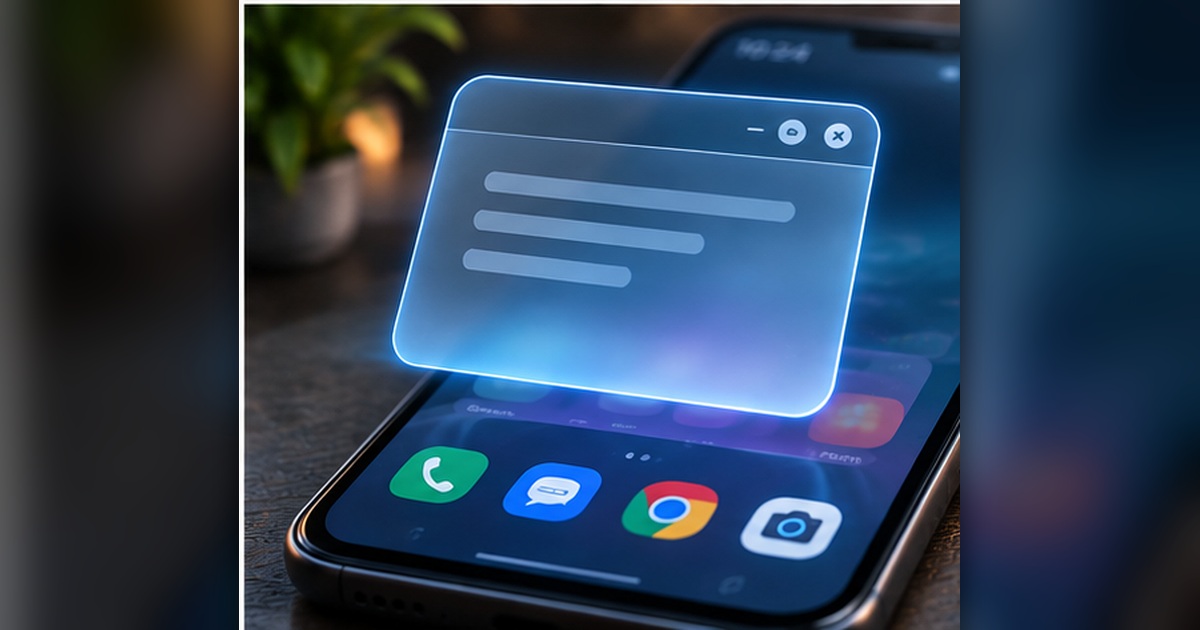
As you know a lot of application can show their views above all application.
You can see if in Facebook Messanger.
How to do it?
The Android API have SYSTEM_ALERT_WINDOW permission (“android.permission.SYSTEM_ALERT_WINDOW”).
The API said: “SYSTEM_ALERT_WINDOW Allows an app to create windows using the type TYPE_SYSTEM_ALERT, shown on top of all other apps.”
Lets see how it works.
Here is screenshot:
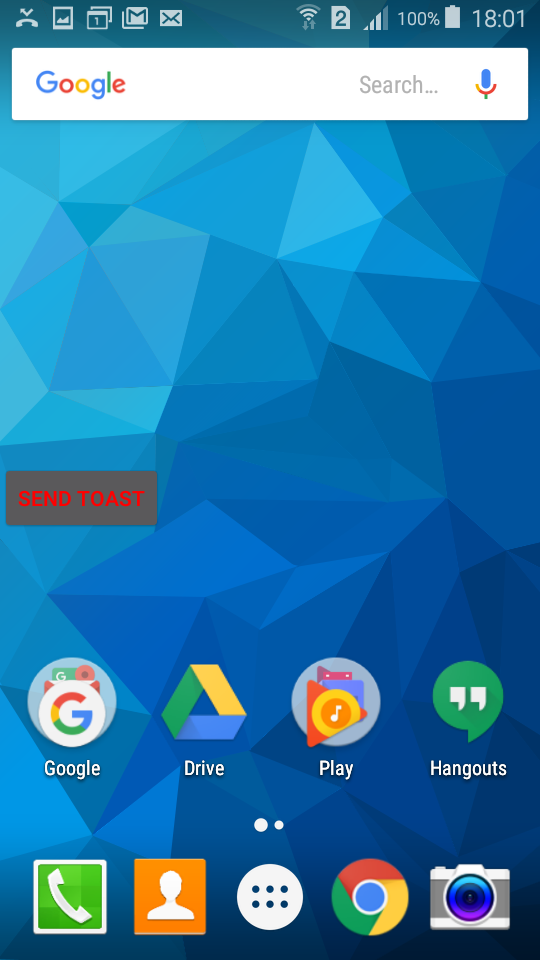
First you need create Android project.
2. Edit AndroidManifest.xml. Add android.permission.SYSTEM_ALERT_WINDOW permission.
<?xml version="1.0" encoding="utf-8"?>
<manifest xmlns:android="http://schemas.android.com/apk/res/android"
    package="com.hrupin.systemalertwindowsample">

    <uses-permission android:name="android.permission.SYSTEM_ALERT_WINDOW" />

    <application
        android:allowBackup="true"
        android:icon="@mipmap/ic_launcher"
        android:label="@string/app_name"
        android:supportsRtl="true"
        android:theme="@style/AppTheme"
        android:name=".App">

        <activity android:name=".MainActivity">
            <intent-filter>
                <action android:name="android.intent.action.MAIN" />

                <category android:name="android.intent.category.LAUNCHER" />
            </intent-filter>
        </activity>
    </application>

</manifest>
3. Create OverlayButton class
package com.hrupin.systemalertwindowsample;

import android.content.Context;
import android.graphics.Color;
import android.graphics.PixelFormat;
import android.os.Handler;
import android.os.Looper;
import android.util.Log;
import android.view.Gravity;
import android.view.MotionEvent;
import android.view.View;
import android.view.ViewGroup;
import android.view.WindowManager;
import android.widget.Button;
import android.widget.Toast;

import java.util.concurrent.atomic.AtomicInteger;

/**
 * Created by Igor Khrupin www.hrupin.com on 4/29/16.
 */
public class OverlayButton implements View.OnClickListener {
    private static final String TAG = "OverlayButton";

    private static final AtomicInteger sNextGeneratedId = new AtomicInteger(1);

    private final WindowManager mWindowManager;
    private final WindowManager.LayoutParams mOverlayParams;
    private Context mContext;
    private Button button;
    private Handler mHandler = new Handler(Looper.getMainLooper());
    private boolean mIsVisible = false;

    public OverlayButton(Context context) {
        mContext = context;

        remove();

        button = new Button(mContext);
        button.setId(generateViewId());
        button.setText("Send Toast");
        button.setTextColor(Color.RED);
        button.setOnClickListener(this);

        mWindowManager = (WindowManager) mContext.getSystemService(Context.WINDOW_SERVICE);


        mOverlayParams = new WindowManager.LayoutParams(ViewGroup.LayoutParams.WRAP_CONTENT,
                ViewGroup.LayoutParams.WRAP_CONTENT, WindowManager.LayoutParams.TYPE_PHONE,
                WindowManager.LayoutParams.FLAG_NOT_TOUCH_MODAL
                        | WindowManager.LayoutParams.FLAG_WATCH_OUTSIDE_TOUCH, PixelFormat.TRANSLUCENT);

        mOverlayParams.gravity = Gravity.CENTER;

    }

    public void attachToWindow() {
        Log.d(TAG, "attachToWindow");

        mHandler.post(new Runnable() {
            @Override
            public void run() {
                if (!mIsVisible && mOverlayParams != null) {
                    mWindowManager.addView(button, mOverlayParams);
                    mIsVisible = true;
                }
            }
        });
    }

    public void remove() {
        Log.d(TAG, "remove");

        mHandler.post(new Runnable() {
            @Override
            public void run() {
                if (mIsVisible) {
                    mWindowManager.removeView(button);
                    mIsVisible = false;
                }
            }
        });
    }

    @Override
    public void onClick(View v) {
        Toast.makeText(mContext, "Button removed", Toast.LENGTH_SHORT).show();
        remove();
    }

    public static int generateViewId() {
        for (; ; ) {
            final int result = sNextGeneratedId.get();
            // aapt-generated IDs have the high byte nonzero; clamp to the range under that.
            int newValue = result + 1;
            if (newValue > 0x00FFFFFF) newValue = 1; // Roll over to 1, not 0.
            if (sNextGeneratedId.compareAndSet(result, newValue)) {
                return result;
            }
        }
    }
}
4. Create Application class
package com.hrupin.systemalertwindowsample;

import android.app.Application;

/**
 * Created by Igor Khrupin www.hrupin.com on 4/29/16.
 */
public class App extends Application{

    private static App INSTANCE = null;

    @Override
    public void onCreate() {
        super.onCreate();
        INSTANCE = this;
    }

    public static App getInstance() {
        return INSTANCE;
    }

    public void showButton() {
        new OverlayButton(this).attachToWindow();
    }
}
5. Create Activity class. This one need for showing button in my case. You can use something another.
package com.hrupin.systemalertwindowsample;

import android.support.v7.app.AppCompatActivity;
import android.os.Bundle;
import android.view.View;
import android.widget.Button;

import java.util.concurrent.atomic.AtomicInteger;

/**
 * Created by Igor Khrupin www.hrupin.com on 4/29/16.
 */

public class MainActivity extends AppCompatActivity implements View.OnClickListener {

    private Button btn;

    @Override
    protected void onCreate(Bundle savedInstanceState) {
        super.onCreate(savedInstanceState);
        setContentView(R.layout.activity_main);

        btn = (Button)findViewById(R.id.btn_show_button);
        btn.setOnClickListener(this);
    }

    @Override
    public void onClick(View v) {
        App.getInstance().showButton();
        finish();
    }
}
You can download full source code from github