
Here I want to describe tutorial which works on my Mac.
MySQL version: mysql Ver 14.14 Distrib 5.7.20, for macos10.12 (x86_64) using EditLine wrapper
Mac OS version: Sierra 10.12.6
Please take care about root access in production environment. I’m feel free to connect to my MySQL db using root because it is my development environment.
So, to change root password which you have forgot/loose you need run couple of commands and do couple of additional steps.
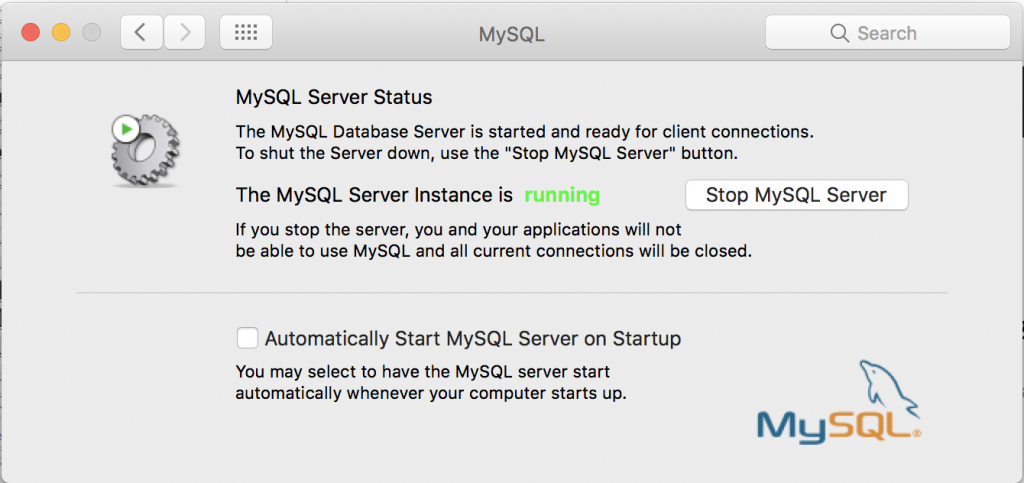
1. Stop your MySQL server using System Preferences. Just open System Preferences–>MySQL and click “Stop MySQL Server” like on screenshot below:
2. Open Terminal and run next command:
sudo mysqld_safe --skip-grant-tables --skip-networking
Command output should be the next:
➜  ~ sudo mysqld_safe --skip-grant-tables --skip-networking
2018-01-07T22:58:07.6NZ mysqld_safe Logging to '/usr/local/mysql/data/Igors-MacBook-Pro-2.local.err'.
2018-01-07T22:58:07.6NZ mysqld_safe Starting mysqld daemon with databases from /usr/local/mysql/data
Now MySQL launched in the save mode.
3. Open new (second) terminal window and run the next command in it. Before it be sure you have mysqld in the PATH.
mysql -u root
Output should be next:
➜  ~ mysql -u root
Welcome to the MySQL monitor.  Commands end with ; or \g.
Your MySQL connection id is 9
Server version: 5.7.20 MySQL Community Server (GPL)

Copyright (c) 2000, 2017, Oracle and/or its affiliates. All rights reserved.

Oracle is a registered trademark of Oracle Corporation and/or its
affiliates. Other names may be trademarks of their respective
owners.

Type 'help;' or '\h' for help. Type '\c' to clear the current input statement.

mysql>
You enter in the MySQL console. Now we need change password in the settings mysql table.
4. Run next command in the MySQL console to change the root password
update user set authentication_string=password('YOUR_NEW_PASSWORD_SHOULD_BE_HERE') where user='root';Before run the command you need replace YOUR_NEW_PASSWORD_SHOULD_BE_HERE with your new root password.
Output should be next:
mysql> update user set authentication_string=password('qwerty') where user='root';
ERROR 1046 (3D000): No database selected
mysql> use mysql;
Reading table information for completion of table and column names
You can turn off this feature to get a quicker startup with -A

Database changed
mysql> update user set authentication_string=password('qwerty') where user='root';
Query OK, 1 row affected, 1 warning (0.00 sec)
Rows matched: 1  Changed: 1  Warnings: 1

mysql>
If you will see Query OK, 1 row affected then all is ok and we can exit MySQL console. You can do it using next command:
exit;
Now you need restart MySQL using System Preferences. Just click on “Start MySQL Server”
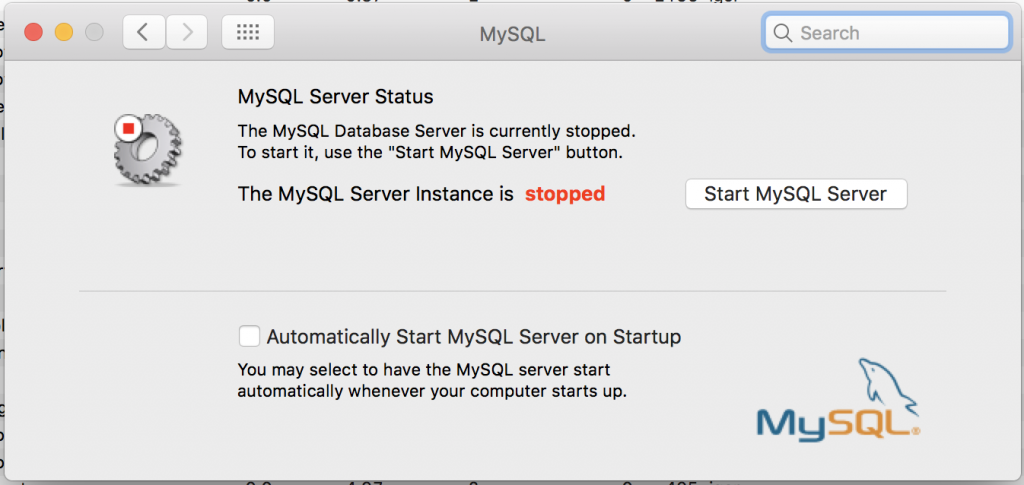
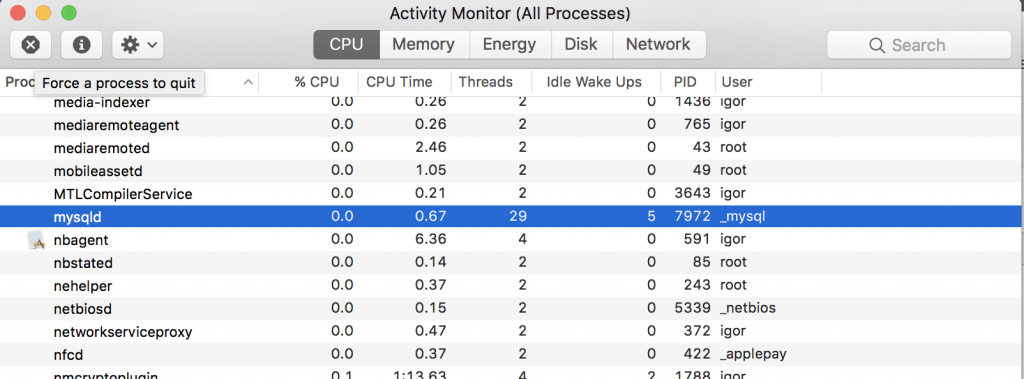
If you can’t do it using System Preferences then you need do it using Activity Monitor tool. You need open “CPU” tab then find and stop mysqld process.
Process “Force quit”  button located in the top-left corner. Have a look screenshot.
Hope it help you.
Let me know if you know better approach.