Month: December 2014

  • WordPress plugin for showing link to GitHub.

    WordPress plugin for showing link to GitHub.

    I’m tired create link to source code in my blog.
    So, what’s why I’ve created simple plugin which help me do it using shortcodes.

    Here is how it looks on my page
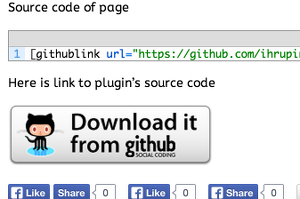
    Screenshot 2014-12-19 15.47.26

    Source code of page

    [githublink url="https://github.com/ihrupin/samples/tree/master/php/githublink"]

    Here is link to plugin’s source code

    <?php
    /*
    Plugin Name: GithubLink
    Plugin URI: https://www.hrupin.com/2014/12/wordpress-plugin-for-showing-link-to-github
    Description: This plugin help show source link
    Version: 1.0 BETA
    Author: Igor Khrupin
    Author URI: https://www.hrupin.com
    */
    
    /*
    DEMO List Posts (WordPress Plugin)
    Copyright (C) 2014 Igor Khrupin
    Contact me at https://www.hrupin.com
    
    This program is free software: you can redistribute it and/or modify
    it under the terms of the GNU General Public License as published by
    the Free Software Foundation, either version 3 of the License, or
    (at your option) any later version.
    
    This program is distributed in the hope that it will be useful,
    but WITHOUT ANY WARRANTY; without even the implied warranty of
    MERCHANTABILITY or FITNESS FOR A PARTICULAR PURPOSE. See the
    GNU General Public License for more details.
    
    You should have received a copy of the GNU General Public License
    along with this program. If not, see <http://www.gnu.org/licenses/>.
    */
    
    add_shortcode("githublink", "githublink_function");
    
    function sourcelink_function($atts) {
    	$image_link = plugin_dir_url( __FILE__ ).'img/gitHub-download-button.png';
    	$alt = 'Download it from github';
    	$width = '230';
    	$height = '70';
    	$url = $atts['url'];
    
    	return '<a href="'.$url.'" target="_blank"><img src="'.$image_link.'" alt="'.$alt.'" width="'.$width.'" height="'.$height.'" class="alignleft size-full wp-image-1595" /></a>';
    }
    ?>

    Download it from github
  • VirtualBox. How to connect USB device to guest Windows7 inside host Mac.

    VirtualBox. How to connect USB device to guest Windows7 inside host Mac.

    There was a problem to connect USB device to hosted Windows7.

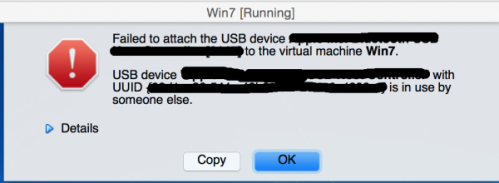
    I always get “Failed to attach USB device to the virtual machine. USB device with UUID is in use by someone else” error. Screenshot:

    Screenshot 2014-12-10 02.17.31

    To remove it I did the next:

    – With the VM powered off, go to Settings–>USB and check “Enable USB 2.0 (EHCI) Controller”
    – Turn on the VM and plug in the device
    – Go back to Settings–>USB and create a USB device filter:
    — Click the green plus
    — Select your device from list
    — Edit the filter properties. Just get context menu on device and select “Edit filter”
    Name, Vendor ID, and Product ID are the only fields populated. All other fields should be blank, and Remote should be set to “Any.”
    – Restart the VM and plugging in the device once the VM is running.

    Hope it helps.

  • Send email with text file as attachment android sample

    Send email with text file as attachment android sample

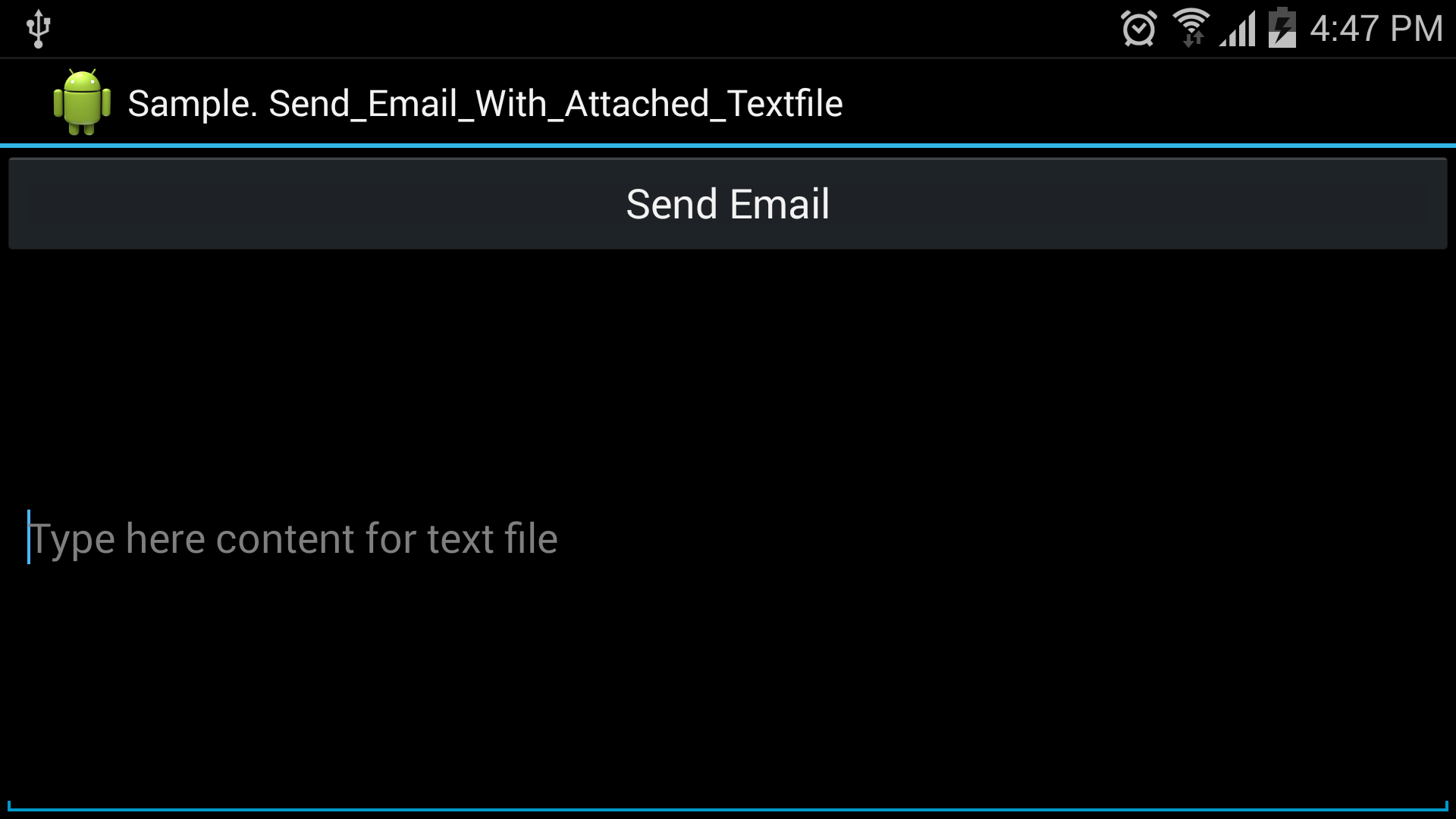
    Here is little sample how to send email (send intent to Mail app) with text file as attachment.

    Screenshot:

    2014-12-02 14.48.00


    And here is source code of main feature:

    private void sendIntentToGmailApp(File fileToSend) {
            if(fileToSend != null){
                Intent email = new Intent(Intent.ACTION_SEND);
                email.putExtra(Intent.EXTRA_SUBJECT, "Send Text File As Attachment Example");
                email.putExtra(Intent.EXTRA_TEXT, emailBody);
                email.putExtra(Intent.EXTRA_STREAM, Uri.parse("file://" + fileToSend.getAbsoluteFile()));
                email.setType("message/rfc822");
                startActivity(Intent.createChooser(email , "Send Text File"));
            }
        }

    I make the text file with sample text before sending. This need to make this sample works.

    The full MainActivity.java is:

    package com.hrupin.samples.sendemail;
    
    import android.app.Activity;
    import android.content.Intent;
    import android.net.Uri;
    import android.os.Bundle;
    import android.os.Environment;
    import android.text.TextUtils;
    import android.view.View;
    import android.widget.Button;
    import android.widget.EditText;
    import android.widget.Toast;
    
    import java.io.File;
    import java.io.FileWriter;
    import java.io.IOException;
    
    
    public class MainActivity extends Activity implements View.OnClickListener {
    
        private static final String FILENAME = "TextFileToSend.txt";
        private Button btnSend;
        private EditText editText;
        private FileWriter writer;
        private String emailBody;
    
        @Override
        protected void onCreate(Bundle savedInstanceState) {
            super.onCreate(savedInstanceState);
            setContentView(R.layout.activity_main);
    
            btnSend = (Button)findViewById(R.id.button);
            btnSend.setOnClickListener(this);
    
            editText = (EditText)findViewById(R.id.editText);
    
            emailBody = "This is email from '" + getString(R.string.app_name) + "' application. Details you can read here: https://www.hrupin.com/2014/12/send-email-with-text-file-as-attachment-android-sample";
        }
    
        @Override
        public void onClick(View view) {
            File fileToSend = createFileWithContent(editText.getText().toString());
    
            sendIntentToGmailApp(fileToSend);
        }
    
        private void sendIntentToGmailApp(File fileToSend) {
            if(fileToSend != null){
                Intent email = new Intent(Intent.ACTION_SEND);
                email.putExtra(Intent.EXTRA_SUBJECT, "Send Text File As Attachment Example");
                email.putExtra(Intent.EXTRA_TEXT, emailBody);
                email.putExtra(Intent.EXTRA_STREAM, Uri.parse("file://" + fileToSend.getAbsoluteFile()));
                email.setType("message/rfc822");
                startActivity(Intent.createChooser(email , "Send Text File"));
            }
        }
    
        private File createFileWithContent(String content) {
            if(TextUtils.isEmpty(content)){
                content = emailBody;
            }
            File file = null;
            try{
                file = new File(Environment.getExternalStoragePublicDirectory(Environment.DIRECTORY_DOWNLOADS), FILENAME);
    
                writer = new FileWriter(file);
                writer.write(content);
                writer.close();
                Toast.makeText(getBaseContext(), "Temporarily saved contents in " + file.getPath(), Toast.LENGTH_LONG).show();
            }catch(IOException e){
                Toast.makeText(getBaseContext(), "Unable create temp file. Check logcat for stackTrace", Toast.LENGTH_LONG).show();
                e.printStackTrace();
            }
            return file;
        }
    }
    

    Don’t forget add permissions in the

    <uses-permission android:name="android.permission.WRITE_EXTERNAL_STORAGE" />
    <uses-permission android:name="android.permission.READ_EXTERNAL_STORAGE" />


    Full source code you can fork from github

    Download it from github