My application requires Android keyboard.
I’ve got LatinIME from AOSP and made gradle module.
LatinIME support Android Accessibility and works perfect with TalkBack.
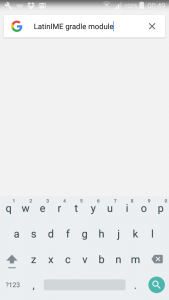
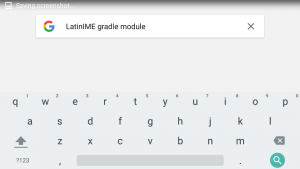
Here is screenshots:
Here is link for my github repo:


My application requires Android keyboard.
I’ve got LatinIME from AOSP and made gradle module.
LatinIME support Android Accessibility and works perfect with TalkBack.
Here is screenshots:
Here is link for my github repo:

When I built native library for LatinIME I’ve got next error:
undefined reference to ‘__atomic_exchange_4
Full stacktrace:
/Volumes/Android/buildbot/src/android/ndk-r13-release/external/libcxx/include/memory:635: error: undefined reference to '__atomic_load_4'
/Volumes/Android/buildbot/src/android/ndk-r13-release/external/libcxx/../../external/libcxxabi/src/cxa_handlers.cpp:112: error: undefined reference to '__atomic_exchange_4'
/Volumes/Android/buildbot/src/android/ndk-r13-release/external/libcxx/../../external/libcxxabi/src/cxa_default_handlers.cpp:106: error: undefined reference to '__atomic_exchange_4'
/Volumes/Android/buildbot/src/android/ndk-r13-release/external/libcxx/../../external/libcxxabi/src/cxa_default_handlers.cpp:117: error: undefined reference to '__atomic_exchange_4'
clang++: error: linker command failed with exit code 1 (use -v to see invocation)
make: *** [obj/local/armeabi/libjni_latinime.so] Error 1
To avoid it open Android.mk file and add next string:
LOCAL_EXPORT_LDLIBS += -latomic

I working on LatinIME Android Keyboard keyboard.
I’ve got source from Google repo.
Here is structure:
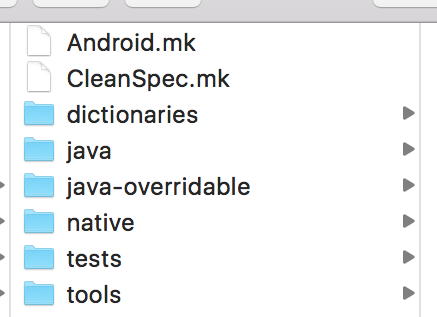
java – contains java code
native – jni code.
When I try to build native I receive next error:
'latinime::MultiBigramMap::BigramMap::BigramMap(const latinime::MultiBigramMap::BigramMap&)':
jni/src/suggest/core/dictionary/multi_bigram_map.h:56:9: error: base class 'class latinime::NgramListener' should be explicitly initialized in the copy constructor [-Werror=extra]
Full stacktrace:
➜ native ndk-build
[arm64-v8a] Compile++ : jni_latinime_common_static <= com_android_inputmethod_keyboard_ProximityInfo.cpp
[arm64-v8a] Compile++ : jni_latinime_common_static <= com_android_inputmethod_latin_BinaryDictionary.cpp
[arm64-v8a] Compile++ : jni_latinime_common_static <= com_android_inputmethod_latin_BinaryDictionaryUtils.cpp
[arm64-v8a] Compile++ : jni_latinime_common_static <= com_android_inputmethod_latin_DicTraverseSession.cpp
In file included from jni/src/suggest/core/session/dic_traverse_session.h:25:0,
from jni/com_android_inputmethod_latin_DicTraverseSession.cpp:24:
jni/src/suggest/core/dictionary/multi_bigram_map.h: In copy constructor 'latinime::MultiBigramMap::BigramMap::BigramMap(const latinime::MultiBigramMap::BigramMap&)':
jni/src/suggest/core/dictionary/multi_bigram_map.h:56:9: error: base class 'class latinime::NgramListener' should be explicitly initialized in the copy constructor [-Werror=extra]
BigramMap(const BigramMap &bigramMap)
^
cc1plus: all warnings being treated as errors
make: *** [obj/local/arm64-v8a/objs/jni_latinime_common_static/com_android_inputmethod_latin_DicTraverseSession.o] Error 1
To avoid it I’ve edited Android.mk in jni dir and replace:
LOCAL_CFLAGS += -Werror -Wall -Wextra -Weffc++ -Wformat=2 -Wcast-qual -Wcast-align \
    -Wwrite-strings -Wfloat-equal -Wpointer-arith -Winit-self -Wredundant-decls \
    -Woverloaded-virtual -Wsign-promo -Wno-system-headers
with
LOCAL_CFLAGS += -w
It is not remove the code problem, but you able to build .so lib
Hi Guys,
Please do the next instructions with your own risk.
fastboot flashing unlock
or, for older devices, run the next:
fastboot oem unlock
flash-all script from ZIP.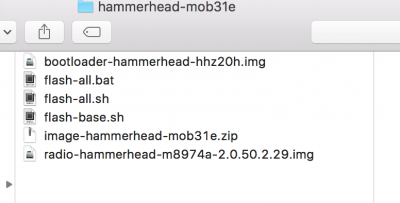
fastboot flashing lock
or, for older devices, running:
fastboot oem lock

Attention! Use it at your own risk.
1. You can turn your smartphone into a brick.
2. Your phone warranty turns void.
3. Malware can easily breach your mobile security.
I’ve rooted my Nexus 5 using KingRoot service.
High recommended for fast rooting.
kingroot.net

As you know we have Google Voice for voice recognition.
Here is simple way to implement offline speech recognition using PocketSphinx lib.
I’ve created simple app which will run Service with speech recognition functionality.
You can add one keyword here:
recognizer.addKeyphraseSearch(KWS_SEARCH, KEYPHRASE);
Sure PocketSphinx have multi-keyword functionality.
File menuGrammar = new File(assetsDir, "voicecommands.gram");
recognizer.addGrammarSearch(VOICE_COMMAND, menuGrammar);
But for me it is’t perfect.
One-word mode works better.
Use PocketSphinx if you need only one-keyphrase recognition.
Here is full documentation:
http://cmusphinx.sourceforge.net/wiki/tutorialandroid
My sample project on github

Here is example for accepting incoming calls programmatically
The most stable version is using adb shell feature.
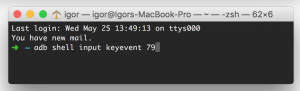
Call can be answered by sending command “adb shell input keyevent 79” via Terminal
Same thing can be done programmatically.
But, it works good for user-driven answering and this solution good for custom call screen.
It will not work for any sort of automated call-control-type applications.
Like auto answering via BroadcastReceivers etc.
try {
    Runtime.getRuntime().exec("input keyevent " + Integer.toString(KeyEvent.KEYCODE_HEADSETHOOK));
} catch (IOException e) {
   //handle error here
}
Awaiting comments. Let me know the better ways.
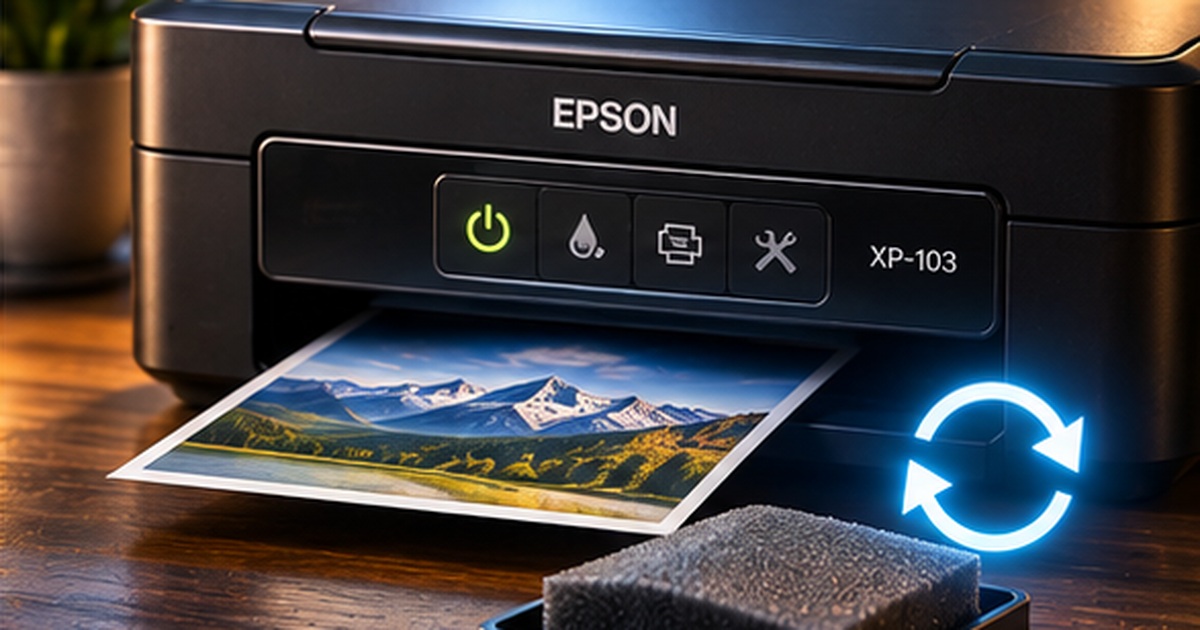
My printer has stop working and “paper” and “ink” start blinking.
This happens when printer’s ink pads are full
From manual:
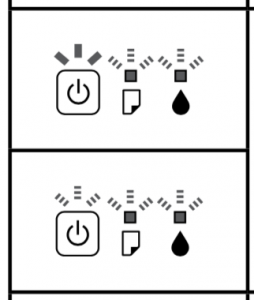
“The printer’s ink pads are nearing or at the end of their service life. Contact Epson Support to replace ink pads. When the printer’s ink pads are nearing the end of their service life, you can resume printing by pressing x r or r x. The paper light and the ink light ash alternately.”
I’ve opened printer and clean ink pads.
After that I need reset counter. To do it I’ve downloaded iWIC tool software.
WIC Reset Utility for Windows (ZIP, 2.56 mB)
iWIC for Mac OS 10.6 Intel and higher (iWIC.dmg)
WIC for Linux
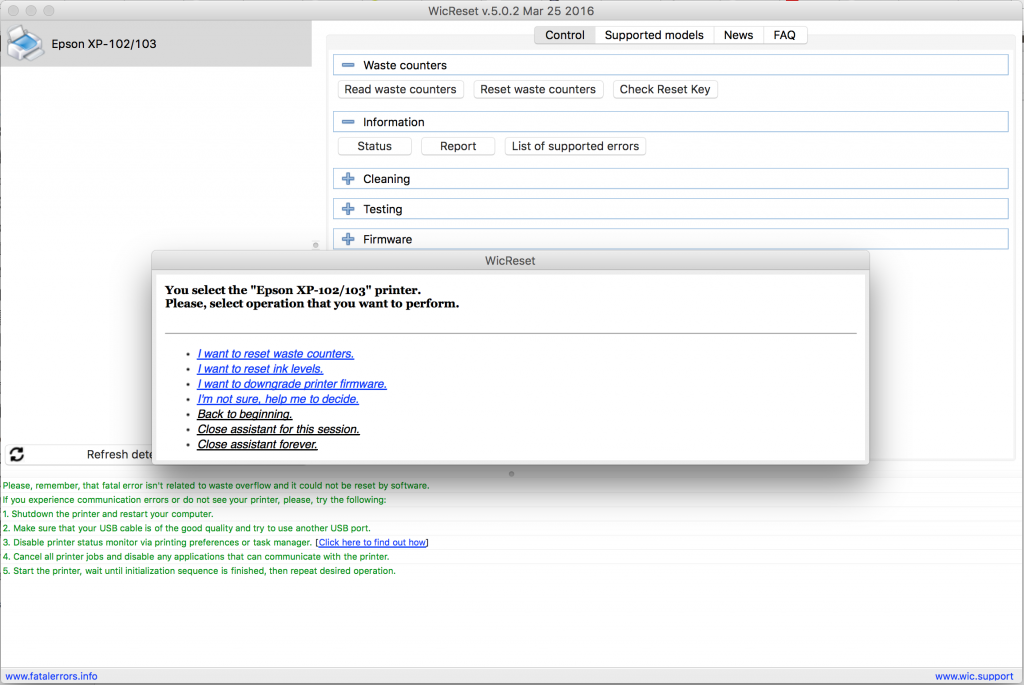
This software require key. But you can use “trial” or “TRIAL” software for one free resetting.
Hope it helps.
Let me know if you know better FREE method. I’ll need it in future 🙂

There a lot libraries for loading images. Lets talk about couple of them.
dependency
dependencies {
    compile 'com.squareup.picasso:picasso:2.5.1'
}
This library easy to use. To load image from url to ImageView you need do just one line.
Picasso.with(context).load("http://i.imgur.com/DvpvklR.png").into(imageView);
Current library have a features which can be useful for your app:
Picasso.with(context)
  .load(url)
  .resize(50, 50)
  .centerCrop()
  .into(imageView)
Picasso.with(context)
    .load(url)
    .placeholder(R.drawable.user_placeholder)
    .error(R.drawable.user_placeholder_error)
.into(imageView);Picasso.with(context).load(R.drawable.landing_screen).into(imageView1);
Picasso.with(context).load("file:///android_asset/DvpvklR.png").into(imageView2);
Picasso.with(context).load(new File(...)).into(imageView3);Current library is recommended by Google.
dependency
dependencies {
    compile 'com.github.bumptech.glide:glide:3.5.2'
    compile 'com.android.support:support-v4:22.0.0'
}
Usage:
Glide.with(this).load("http://goo.gl/gEgYUd").into(imageView);Also Glide has a features:
Glide
    .with(myFragment)
    .load(url)
    .centerCrop()
    .placeholder(R.drawable.loading_spinner)
    .crossFade()
    .into(myImageView);
I use Glide because:
1. Faster than Picaso
2. Have better “.with()” method. Glide.with(this) can take Context, Fragment, Activity, etc.
Currently Glide better Image loader library.
Awaiting your comments.
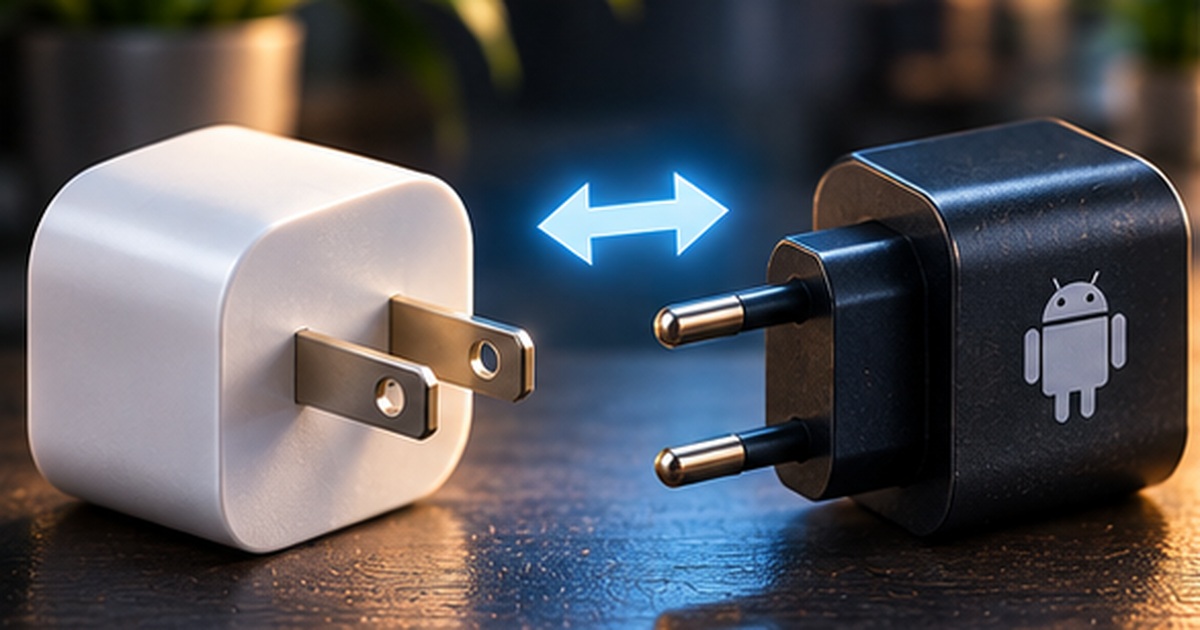
I use this coefficients when I need convert iOS assets to Android or Android to iOS.
MDPI / BASE = 100
TVDPI = 133
HDPI = 150
XHDPI / RETINA = 200
XXHDPI = 300
XXXHDPI = 400